
By 10:30, the body usually starts negotiating with the workspace. The neck reaches toward the laptop. The shoulders rise without you noticing. The low back stiffens, then starts to ache. By lunch, many remote workers are already twisting in the chair, propping up on one elbow, or sliding to the edge of the seat to get a few minutes of relief.
I see this pattern often in people working from home. The problem is rarely one dramatic error. It is usually a collection of small mismatches between body and setup, repeated for hours at a time. A chair that tips the pelvis backward. A screen that pulls the head forward. A table height that leaves the wrists cocked up and the shoulders braced. Too little movement between tasks.
Working from home is now routine for a large part of the Australian workforce, and the strain that comes with a makeshift setup is routine too. What starts as a mild pull between the shoulder blades or a dull ache across the low back can become the part of the day you plan around.
An osteopathic approach looks at more than the desk and the device. It looks at how your joints, muscles, breathing, circulation, and attention respond to the way you work in that space. A good home office setup does not require expensive gear. It does require a setup your body can keep using without paying for it by mid-morning.
The goal is not to hold one perfect posture all day. The goal is to build a setup that reduces strain, allows small position changes, and makes movement easy enough to happen often.
Table of Contents
- Why Your Kitchen Table Is Hurting Your Back
- The Ergonomic Foundation Your Body Needs
- Low-Cost Adaptations for Immediate Relief
- Beyond Static Posture The Power of Movement
- Creating Boundaries for Body and Mind
- Your Osteopathic Self-Care and Access Toolkit
Why Your Kitchen Table Is Hurting Your Back
You open the laptop at the kitchen table for what should be one quick task. By mid-morning, you are shifting in the chair, rubbing the base of your neck, and crossing then uncrossing your legs because no position lasts. That pattern is common, and it usually has a simple cause. The setup is asking your body to work around furniture that was never built for screen-based work.
The kitchen table creates a poor compromise from the start. Dining chairs are often too rigid or too low to support long bouts of typing. Tabletops are usually too high for relaxed shoulders and too low for comfortable screen height. On a laptop, you then face a trade-off. Keep the screen low and the neck bends forward. Raise the screen and the keyboard sits too high for the wrists and shoulders.
Your body copes for a while. Then it starts paying for that compromise.
You creep closer to the screen. The chin pokes forward. The ribs drop. One hip takes more weight than the other. A foot hooks around the chair leg to create a bit of stability. None of these adjustments are dangerous on their own. Holding them for hours is what creates trouble.
Why makeshift spaces cause real strain
From an osteopathic perspective, the problem is not a single “bad posture.” It is repeated, uneven load. If the pelvis is poorly supported, the lower back and mid-back have to stiffen to create stability. If the screen is low, the muscles at the base of the skull and through the upper trapezius stay active longer than they should. If the mouse is too far away, the shoulder starts bracing before you notice it.
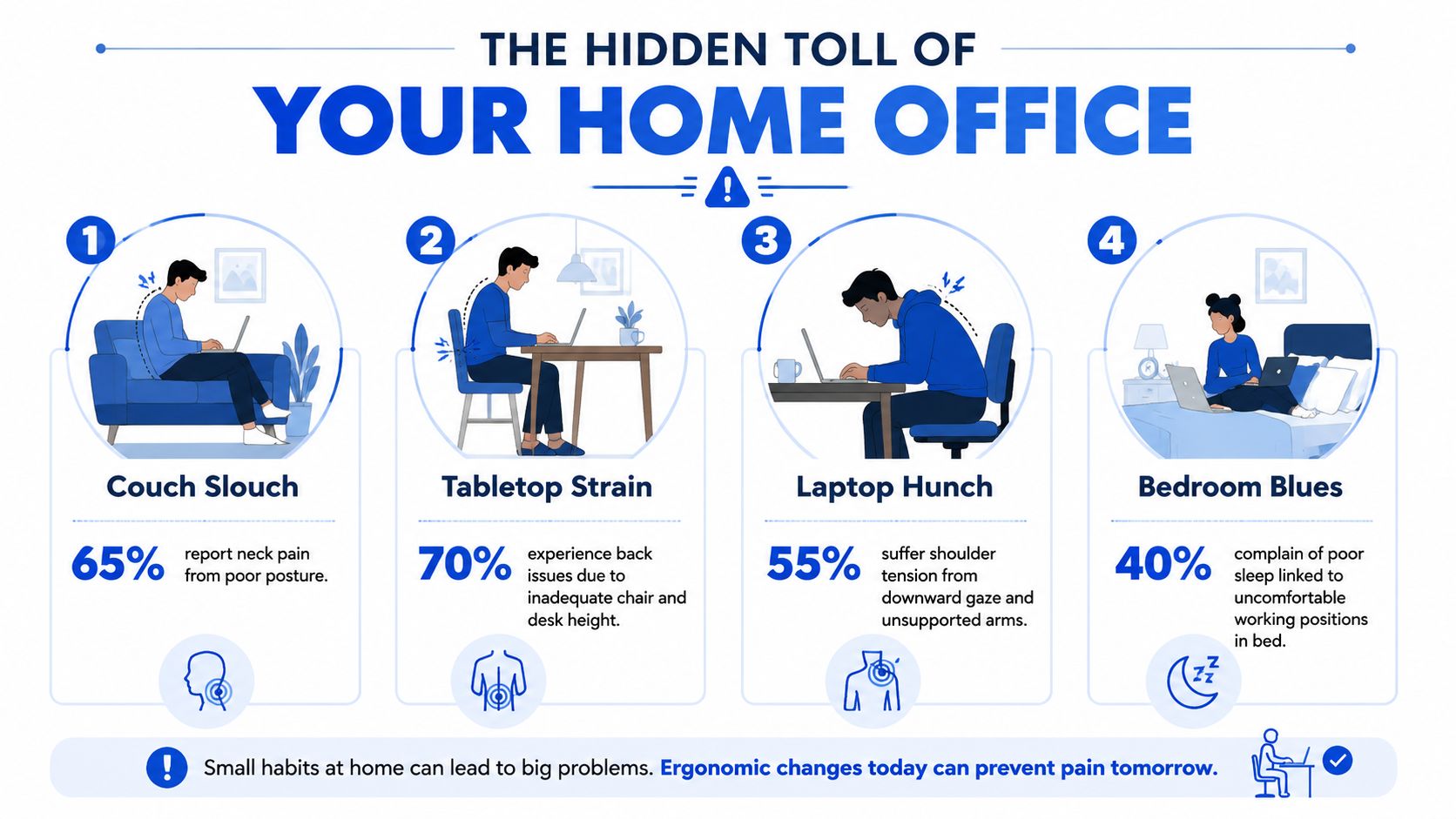
A useful reference is this visual guide to common desk posture faults, but the main point is simpler than any diagram. Your body will usually tell you early when the load is poorly distributed.

Practical rule: If your setup makes you fidget constantly by mid-morning, your body is already telling you the arrangement isn't working.
Home work also happens in real homes, not ideal clinics or showrooms. The table may be shared with children, meals, paperwork, or another adult working nearby. The spare room may not exist. Background noise, lighting, and privacy all affect how long you stay in one guarded position. People often keep adjusting themselves because changing the environment feels harder.
Why this isn't just your problem
This problem is widespread, not personal. As noted earlier, regular work from home remains common in Australia, and it is not evenly distributed across occupations. CEDA also found clear differences in who gets to work from home regularly, which helps explain why some workers can build better routines and spaces than others.
Access to a proper home setup is uneven too. The Australian Digital Inclusion Index case study on remote work access found that many people were working without a dedicated private workstation, and many were supplying their own keyboard and screen rather than being fully equipped by an employer. That is a big reason kitchen tables, spare corners, and couch-side setups become default workstations instead of short-term backups.
The reassuring part is that pain from a poor home setup often settles when the workspace stops fighting the body. Relief usually comes from better support, better positioning, and more variation through the day, not from buying a full office in one go.
The Ergonomic Foundation Your Body Needs
A sound working from home setup starts with body position, not gadgets. Expensive gear won't rescue a layout that still makes you crane your neck, shrug your shoulders, or collapse through the low back. Start with the basics, then improve the equipment around them.
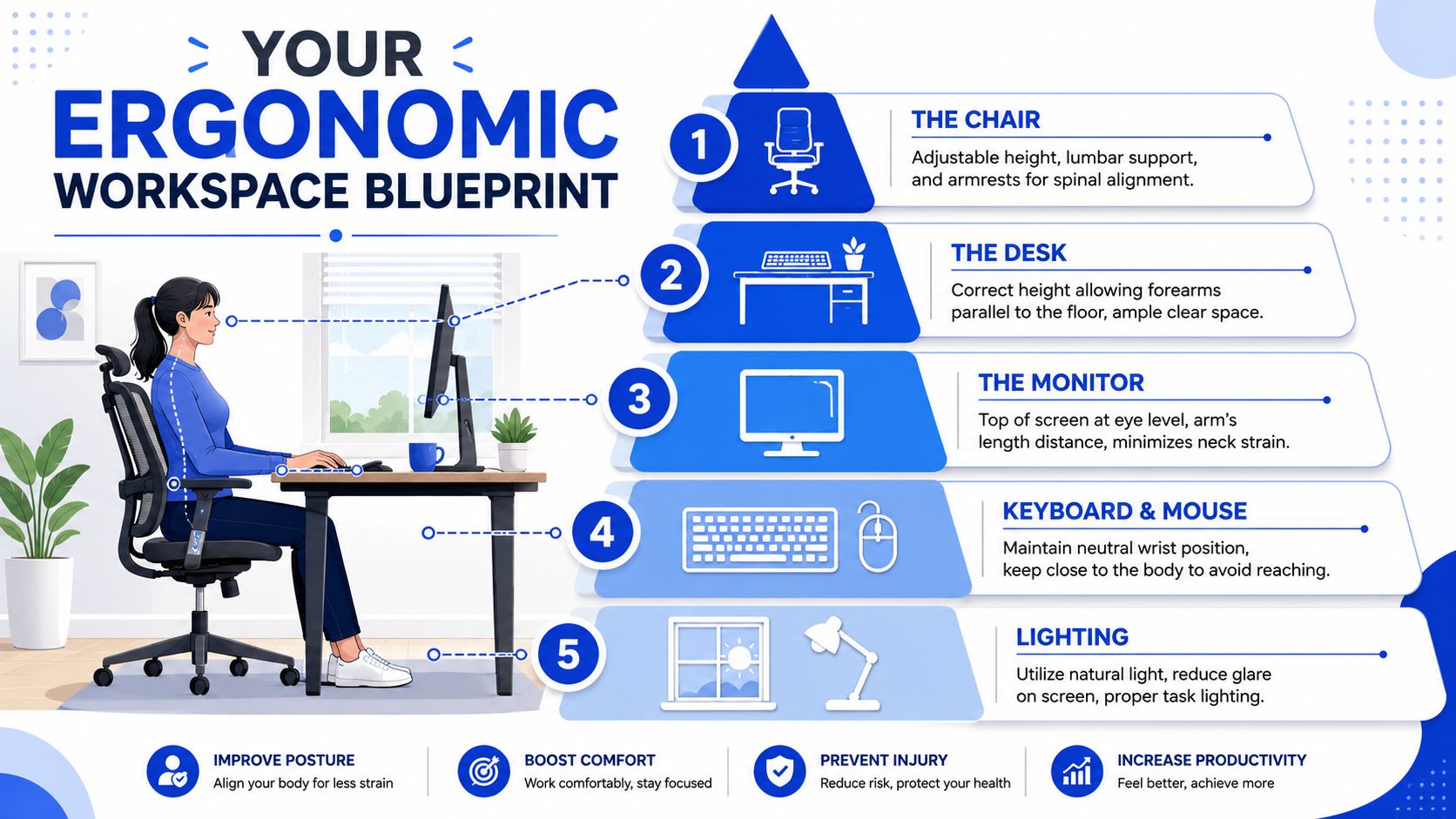
A useful visual guide can help when you're adjusting things piece by piece.
Start with your seat and pelvis
Your pelvis is the base of the whole setup. If it's unstable, the spine above it has to compensate. Sit so your feet are supported on the floor or on a firm footrest. Your hips and knees should be comfortably bent, and your thighs should feel supported without the chair edge digging in behind the knees.
Many people know the “90-90-90” idea. It's a decent starting point, not a law. Aim for elbows, hips, and knees to sit around right angles, then adjust according to your build and comfort. If the chair is too high and your feet dangle, the hamstrings and low back tend to tighten. If it's too low, you'll usually round your pelvis and slump.
Use back support where the low back naturally curves inward. That support doesn't need to force you upright like a soldier. It should reduce the effort needed to sit well. This corporate ergonomics posture illustration is a good reference for how the head, shoulders, and pelvis should stack more naturally.
Your chair should hold you, not make you hold yourself all day.
Set the screen for your neck and eyes
Screen position has a direct effect on neck load. If the screen sits too low, the head drops forward and the muscles at the back of the neck stay under constant tension. Over time that can feed headaches, upper back tightness, jaw tension, and fatigue around the eyes.
According to Australian ergonomic guidance summarised by HP using Safe Work Australia recommendations, your monitor should sit an arm's length away, roughly 50 to 70 cm, with the top of the screen at or slightly below eye level. The same guidance notes that working only on a laptop without a separate monitor can increase neck pain risk by up to 40% among remote workers.
That figure matches what clinicians see every week. Laptops are portable, but they create an ergonomic conflict. The screen needs to be high while the keyboard needs to be low. One device can't do both well at the same time.
If you use one screen:
- Raise the display: Put the screen high enough that you're looking straight ahead or slightly down.
- Keep it centred: Don't angle the monitor off to one side unless that side is only used briefly.
- Reduce glare: If you squint or lean to avoid reflection, your neck and eyes will both pay for it.
A quick demonstration often helps people see what these adjustments look like in practice.
Place the keyboard and mouse where your shoulders can relax
Your hands should meet the keyboard and mouse close to the body. If you have to reach forward, the shoulder blades drift apart and the upper back starts working too hard. If the keyboard sits too high, the wrists extend and the shoulders hike up. If it sits too low, you'll collapse through the trunk to get to it.
Keep these points simple:
- Bring the tools in close: Elbows should stay near your sides, not wing out.
- Let the forearms float roughly parallel to the floor: That usually allows the wrists to stay neutral.
- Match mouse and keyboard height: If one sits higher than the other, one side of the body often starts bracing.
Lighting matters too. A dim room encourages forward head posture because people instinctively lean in to see more clearly. Harsh overhead light or window glare creates the opposite problem, where people twist or squint to avoid reflections.
The aim isn't to create one frozen “correct” posture. The aim is to create a base position your body can return to easily, without effort and without strain accumulating too quickly.
Low-Cost Adaptations for Immediate Relief
By the time pain shows up halfway through the day, the problem is usually simple. The screen is too low, the chair is too deep, the feet are dangling, or the hands are working too far from the body. Relief often comes from changing those contact points first, using what is already in the house.
As noted earlier, many people working from home are doing it without an ideal room or a fully equipped workstation. That is why small physical adjustments matter. In clinic, I often find that a towel, a box, and a cheap keyboard can reduce strain faster than waiting weeks to buy the perfect chair.
Use what you already have
Start with the places where your body meets the workspace. Change one thing, work for a day or two, then judge it by symptoms. Can you sit longer without your low back tightening? Do your shoulders stay quieter by the afternoon? Does your neck feel less worked after email, calls, and admin?
- Rolled towel for low back support: Place it in the curve of the low back, not behind the ribs. That gives the pelvis a better base and often reduces the urge to slump.
- Books or storage boxes under the screen: Lift the monitor so you are not spending hours dropping your head. If you need ideas for simple movement-friendly desk adjustments and mobility prompts, keep them visible near the workspace.
- Firm cushion under the hips: This helps when the chair is too low and the knees sit higher than the hips.
- Box or textbooks under the feet: Use this if raising the seat improves arm position but leaves the legs unsupported.
- External keyboard and mouse: These are often the best low-cost purchase because they let you separate screen height from hand position.
- Folded towel under the forearms: Useful on a hard kitchen table edge that presses into wrists or elbows.

Ask a practical question. Do you feel less loaded after two hours?
The next fix is often subtraction. Clear enough room for the mouse to move without the wrist twisting around mugs, notebooks, or chargers. Remove anything that makes you perch on the front edge of the chair. Stop working from the bed or a deep couch if pain is already present. Those setups usually force the spine and shoulders to do support work that the furniture should be doing.
Ergonomic upgrades budget vs ideal
| Ergonomic Need | Ideal Equipment | Low-Cost Adaptation |
|---|---|---|
| Screen height | Adjustable monitor arm | Stack of books or storage boxes |
| Low back support | Ergonomic chair with lumbar support | Rolled towel or small firm cushion |
| Foot support | Adjustable footrest | Shoebox, ream of paper, or stable box |
| Keyboard position | Height-adjustable desk tray | External keyboard placed on table edge |
| Mouse comfort | Ergonomic mouse | Standard mouse moved closer to body |
| Standing option | Sit-stand desk | Bench for short standing tasks, then return to seated work |
| Lighting | Adjustable task lamp | Reposition desk near natural light and angle screen away from glare |
A low-cost setup still needs testing. If you raise the screen, add a cushion, and change the chair on the same day, you will not know which change helped. Make one adjustment, let the body respond, then keep, remove, or refine it.
That process matters because pain is rarely caused by one dramatic fault. It usually comes from small mismatches repeated for hours. Fix the mismatch first. The body often settles quickly when the setup stops asking it to brace all day.
Beyond Static Posture The Power of Movement
The biggest problem with most ergonomic advice is that it treats posture like a pose. It gives the impression that if you line everything up correctly and hold still, pain should disappear. In practice, the body doesn't work that way.
Australian osteopathic and ergonomics data highlighted by ABC Health's report on working from home ergonomics shows that 68% of remote workers with chronic neck or back pain fail to improve because they don't move every 20 to 30 minutes. The same reporting notes that static sitting increases spinal compression by 40% compared with frequent postural shifts. That's why movement integration often matters more than chair quality alone.
Your best posture is your next posture
A well-set chair and screen still won't save you if you freeze in one position all day. Joints need variation. Muscles need regular load changes. Discs and connective tissues respond better to alternating pressure than to constant pressure.
That means a healthy working from home setup should allow for:
- Micro-movements: Shifting weight, changing leg position, leaning back briefly, then sitting forward again.
- Position changes: Moving between seated tasks, standing calls, and short walks.
- Visual breaks: Looking away from the screen to reset the eyes and reduce the tendency to poke the head forward.
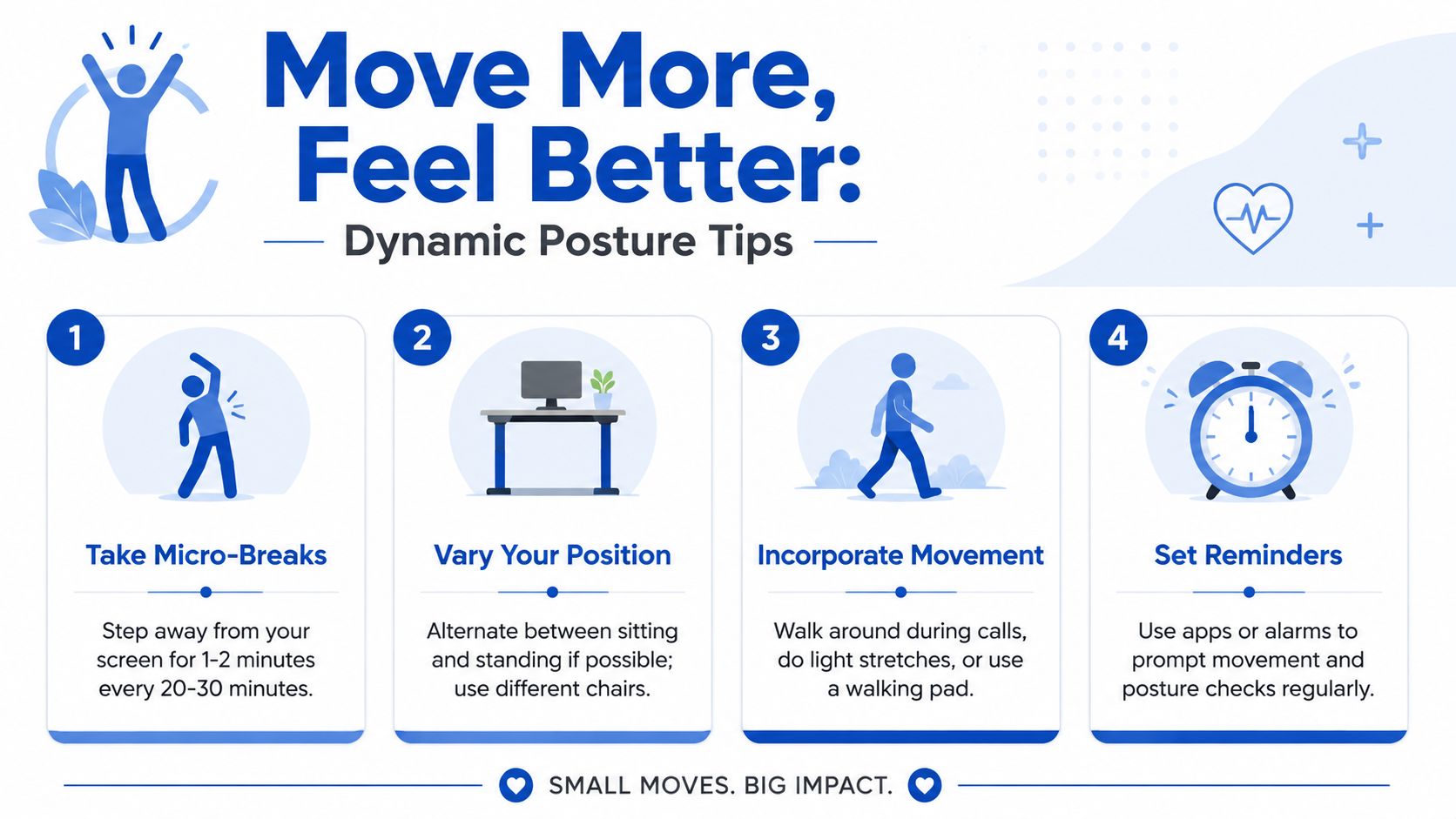
A simple rule works well. Every 20 to 30 minutes, stand up, stretch, walk to get water, or take a brief lap around the room. If you can't leave the desk, at least change shape.
Three desk-friendly movements that help
These aren't performance exercises. They're reset tools. The goal is to reduce accumulated tension before it turns into pain.
Neck side glides
Sit tall and gently draw your head straight sideways, as if making a double chin and sliding the nose across without tipping it. Alternate sides slowly. This can ease the compressed feeling many people get from screen work.Shoulder rolls with a long exhale
Lift the shoulders gently, roll them back, and let them drop while breathing out fully. The exhale matters. People holding stress in the upper chest often keep the shoulders half-raised without noticing.Seated thoracic rotation
Cross the arms over the chest and rotate gently to one side, then the other. Keep the movement through the ribcage rather than wrenching the low back. This is especially helpful after long periods of mousing.
A visual movement guide can make these easier to follow. This mobility exercise illustration shows the kind of simple, repeatable movements that suit desk breaks well.
If a stretch feels aggressive, you're pushing too hard. Desk movement should refresh the body, not fight it.
Build movement into the day instead of relying on motivation
The people who move consistently don't usually have more discipline. They build cues into the day.
Try practical triggers such as:
- Boiling the kettle: Stand, walk, and extend the spine while it heats.
- Phone calls: Take them standing or pacing.
- Emails sent: Every few messages, sit back fully and reset the shoulders.
- Calendar events: Use meeting boundaries as movement prompts rather than scrolling gaps.
If you have access to a sit-stand desk, use it for variation, not for marathon standing. Standing still for too long can irritate feet, calves, and low backs just as sitting still can. Shift, step, lean, and alternate.
Movement is the part of home office ergonomics that people resist because it sounds too simple. It isn't optional. It's the missing ingredient in most pain patterns linked to remote work.
Creating Boundaries for Body and Mind
A working from home setup can look tidy and still feel exhausting. That's because pain doesn't come only from screen height and chair support. It also comes from the nervous system staying “on” for too long.
Australian mental health data discussed in Arielle's home office setup review of the psychological side of remote work found that 52% of remote workers reported increased isolation and 44% struggled with work-life separation, with flow-on effects including stress-related musculoskeletal pain. That connection matters. Stress changes breathing, muscle tone, jaw tension, and how quickly the body becomes sore.
Stress shows up in the body
When work bleeds into home life, the body rarely relaxes fully. People keep checking emails from the couch. They eat lunch at the desk. They finish work, but the laptop stays open in the same room where they're meant to unwind. The neck and shoulders often become the storage space for that unfinished state.
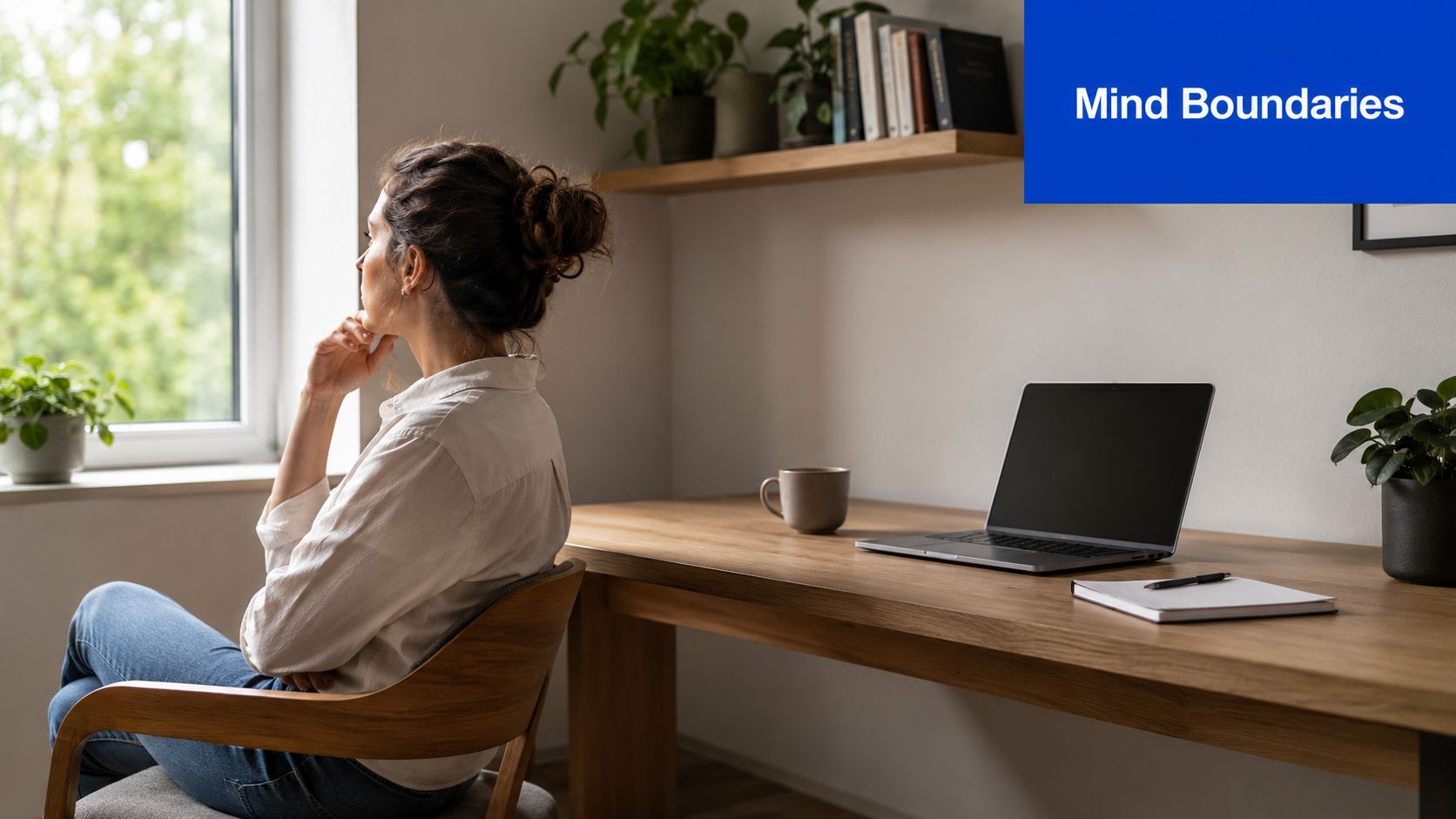
You don't need a separate study to create boundaries. You need signals that tell the brain and body when work begins and ends.
Small rituals that tell your body work has ended
A useful end-of-day routine might include:
- Packing away equipment: Close the laptop, put notebooks in a drawer, and move chargers out of sight if possible.
- Changing location: Sit in a different chair or go to a different room after work, even for ten minutes.
- Using a recovery zone: Create one spot that isn't associated with work. A comfortable chair near natural light works well.
- Changing sensory cues: Turn off the desk lamp, open a window, or put on different music after work finishes.
A home office should support work without taking over the whole home.
This matters for pain because a body that never gets a proper “off switch” tends to keep guarding. The shoulders stay lifted. The jaw stays clenched. The breathing stays shallow. Physical ergonomics and psychological boundaries work best together.
Your Osteopathic Self-Care and Access Toolkit
A useful working from home setup is one you can maintain on an ordinary Wednesday, not one that only works when you remember every rule perfectly. Keep the self-care simple and repeatable.
A simple daily checklist
- Set the screen first: Get the display up to a comfortable height before you start.
- Support the low back: Use a towel, cushion, or chair contour that helps the pelvis sit well.
- Keep tools close: Keyboard and mouse should let the shoulders stay soft.
- Move often: Brief resets beat one long stretch at day's close.
- Finish properly: Pack away work and step into a non-work space when the day ends.
Two or three short resets done daily are often more useful than one big session once pain has built up. Neck glides, shoulder rolls, and gentle seated rotation are good places to start. For broader home movement ideas, this osteopathy and movement guide is a helpful visual reference.

When to get professional help
If pain keeps returning despite changing your setup, if headaches are building from desk work, or if you're getting tingling, persistent stiffness, or pain that spreads into the arm or leg, it's worth getting assessed. The setup may be part of the problem, but it may not be the whole problem.
An osteopath looks at how the body is coping overall. That includes joint motion, muscle tension, ribcage movement, breathing patterns, and how you load the spine through the day. For some people, hands-on treatment and personalized exercise advice can help break a cycle that workspace changes alone haven't shifted. If you're eligible, a GP can also advise whether a Chronic Disease Management plan may help with access to allied health support, including Medicare assistance in some cases.
If you're in Bayside and your working from home setup is leaving you sore, stiff, or frustrated, Bayside Osteopathic Health offers gentle, practical care focused on easing pain and improving movement. The team can help you understand whether the issue is your desk, your movement habits, or the way your body is compensating, then guide you with hands-on treatment and realistic advice you can use at home.